Printer Shows Offline? How to Fix It on Windows and Mac
The printer is on, has paper, and still says "Offline." Here's the checklist that resolves it almost every time, for both Windows and Mac.
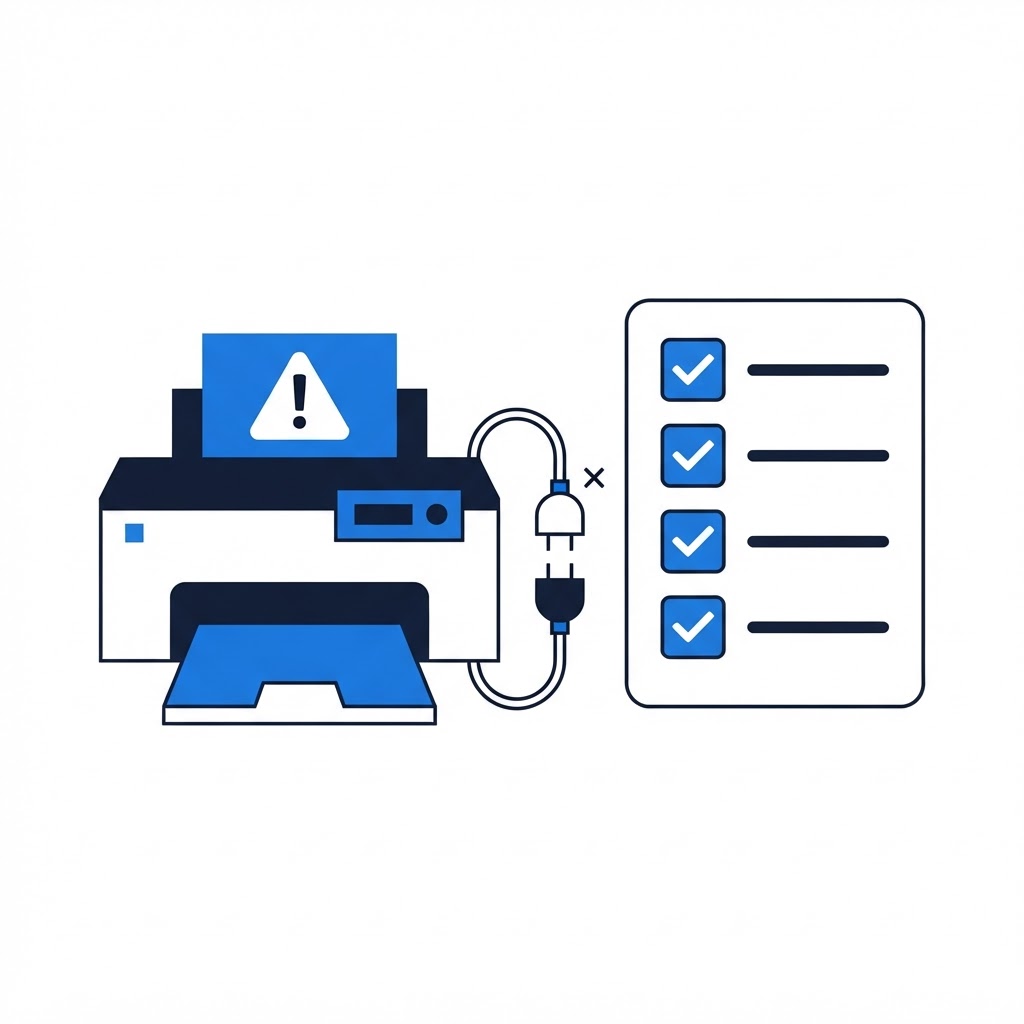
"Offline" is the printer's most annoying message because it's usually lying — the printer is right there, powered on, with paper. The status just means your computer can't currently reach it. Here's how to fix that, in order of how often each step works.
Start With the Basics
-
Power-cycle everything. Turn the printer off, unplug it for 30 seconds, plug it back in, and restart your computer. This clears stale connections more often than any other step.
-
Check the physical connection. USB printer: try a different port and cable. Wireless printer: confirm it's connected to the same Wi-Fi network as your computer — this is the single most common cause. Print the printer's own network config page (most have a button or menu option for it) to see which network it joined.
-
Clear the print queue. A single stuck job blocks everything behind it. Windows: Settings > Bluetooth & devices > Printers & scanners > your printer > Open print queue > cancel all jobs. Mac: System Settings > Printers & Scanners > your printer > open the queue.
Windows-Specific Fixes
-
Uncheck "Use Printer Offline." Open the print queue, click the Printer menu, and make sure "Use Printer Offline" is not checked.
-
Restart the Print Spooler. Press Win+R, type
services.msc, find "Print Spooler," right-click > Restart, then try printing again. -
Set it as default. In Printers & scanners, turn off "Let Windows manage my default printer" and pick yours manually.
-
Reinstall the driver. Remove the printer entirely, then add it back. Let Windows fetch the driver fresh — outdated drivers after a Windows update are a classic cause.
Mac-Specific Fixes
-
Reset the printing system. System Settings > Printers & Scanners, then right-click (or Control-click) the printer list and choose "Reset printing system." Re-add the printer afterward.
-
Re-add via AirPrint or the vendor app. When adding the printer back, prefer the manufacturer's app or driver over a generic one for full functionality.
When It Keeps Happening
A printer that drops offline every few days usually has one of three root causes: it's on the 2.4 GHz band while your PC is on 5 GHz and your router isn't passing traffic between them, its DHCP lease changes and the PC holds a stale address, or a power-saving feature on a USB hub is cutting the connection. Assigning the printer a static IP in your router, or moving it to a wired connection, ends the cycle.
If you'd rather not wrestle with drivers, spoolers, and router settings, our technicians fix offline printers over a remote session every day — usually in under 20 minutes.
Need a Hand With Your Computer?
Our technicians fix computers, Wi-Fi, printers and smart home devices remotely — anywhere in the US, same-day sessions available.